Laser Rotary Attachments: Compatibility, Fit, and First-Job Checks
Choose and set up a rotary attachment by machine compatibility, object support, clearance, software mode, and a controlled first job.

A rotary purchase starts with the object and the exact engraver configuration. The attachment must hold the object appropriately, connect through a supported interface, and work with the intended software mode. This guide provides a buying and preparation workflow without inventing a universal wiring arrangement or a one-size-fits-all calibration value.
Affiliate disclosureAs an Amazon Associate we earn from qualifying purchases made through links on this page. Commissions never change our ratings.
Identify the object before choosing the mechanism
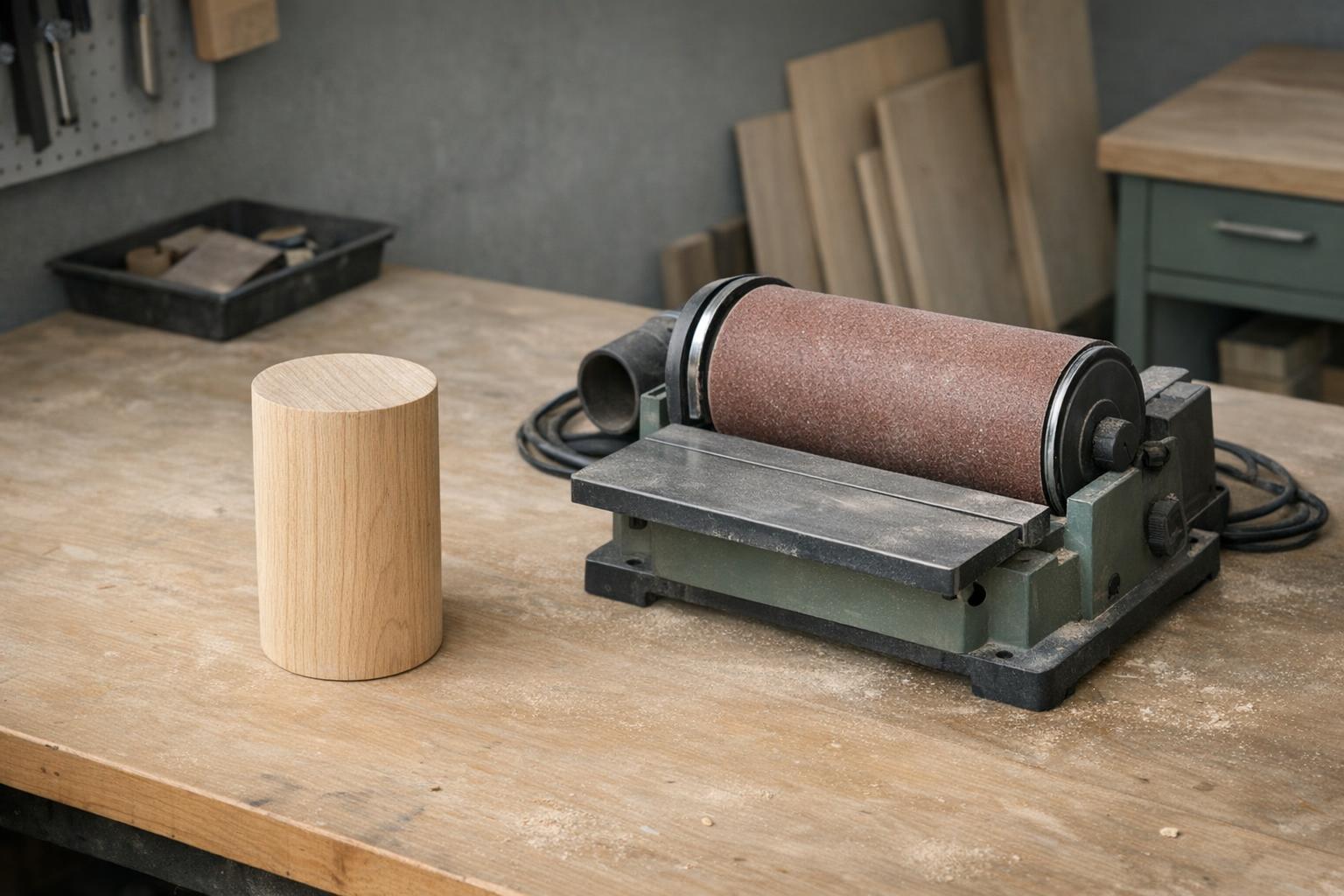
Write down the object's material, surface finish, diameter, length, and any handle or irregular shape. Photograph it beside a ruler and identify the area you want to engrave. Ask whether the supplier can provide matching sacrificial stock for setup work. A practice piece from a different material may help with handling, but it cannot establish the final processing settings.
xTool's current S1 instructions distinguish the RA2's roller operation from the RA2 Pro's roller and chuck options.[10] Use that distinction to ask which supported configuration fits your object. Do not assume an attachment pictured holding a smooth cylinder will handle every taper, ring, or long object. The right question is whether the complete supported setup can hold your particular workpiece.

Confirm the entire compatibility chain
Check:
- Machine model and module
- Rotary model
- Connection cable
- Base or riser
- Software and firmware requirements
Ask for the manufacturer's current setup document. A plug that physically fits is not a compatibility determination. If a marketplace bundle uses a different cable or omits a required base, resolve the discrepancy before ordering.
For S1 specifically, xTool calls for a riser base and warns that some rotary kits need a compatible connection cable.[10] Do not generalize those parts to another machine. Create a short bill of materials and mark each item as included or separate. Save the support answer alongside the order so a later replacement purchase does not depend on remembering which bundle you originally selected.
Prove clearance with the intended configuration
Draw the rotary and workpiece inside the supported operating envelope. Include protrusions and the head's documented motion clearance. Our work-area guide explains how to separate external dimensions from useful processing space. If the machine's height or base arrangement changes, review the enclosure instructions as part of the same setup.
Before processing, follow the manufacturer-approved positioning procedure and check that the object is supported as intended. A handle that clears in one orientation may still complicate the proposed movement, so ask the manufacturer about the complete rotation path. Do not solve clearance problems by removing protective parts or improvising an unsupported stack. A different object or fixture may be the more practical answer.
Match the software mode to the hardware
The current S1 rotary guide specifies distinct roller and chuck modes; chuck mode calls for the material perimeter or diameter.[10] Use the instructions for your own system rather than copying another user's numerical configuration. Record the measurement method and units so you can repeat the setup without guessing.
Keep a separate rotary project or setup record. Include the selected mode, relevant dimensions, object orientation, and a photograph of the fixture. Our software workflow guide explains why a saved design file is only one part of a repeatable job. If a measurement is uncertain, resolve it before engraving a customer's object. Changing artwork size to disguise an unexplained scaling problem makes future troubleshooting harder.
| Item | Documented detail |
|---|---|
| RA2 | Roller operation |
| RA2 Pro | Roller and chuck options |
| Chuck mode | Calls for the material perimeter or diameter |
| Base | Riser base required on the S1 |
| Cable | Some kits need a compatible connection cable |
| Connecting | Power off first; close the lid for framing |
Start with a deliberately simple design
Choose a small first job with a clear top, bottom, and direction, such as a labeled outline on approved sacrificial stock. First verify placement with the documented framing procedure. xTool's S1 instructions call for closing the lid for framing.[10] Follow your machine's own protection requirements throughout setup, including any low-power or positioning functions.
Assess the result against a few written criteria: location, orientation, proportions, and the desired surface appearance. Change one identified variable at a time and keep the previous result labeled. Our material settings guide helps separate settings development from positioning checks. Do not use an unexplained successful result as a reason to skip the measurement and setup record; you will need both when the next object arrives.
Return to flat work deliberately
When the rotary job is finished, follow the documented shutdown and disconnection sequence. For the S1 installation sequence, xTool explicitly instructs users to power off before connecting the rotary.[10] Consult the corresponding removal and restoration instructions for your equipment instead of treating a cable change as an ordinary live adjustment.
Restore the supported flat-work configuration and check the software mode before the next job. Keep all removed hardware and the rotary's instructions together in labeled storage. Record any unresolved slipping, fit, or scale issue instead of compensating silently in the next file. A rotary is useful when it expands a process you can document and repeat; it is a poor shortcut for an object whose material, support, or compatibility is still unknown.
Our rated picks
The three best-rated models of our engraver accessories ranking, from the Amazon review record and the listed specs.


Product images: Amazon listings