A Repeatable Laser Software Workflow from Artwork to Saved Job
Prepare artwork, check units and operations, verify origin and preview, then save the complete job record for reliable repeat work.

A dependable laser workflow makes the important decisions visible before the machine starts: what the artwork measures, which operations will run, where they will land, and which settings belong to the material. Use a small preflight process every time, especially when a familiar-looking file came from someone else.
Affiliate disclosureAs an Amazon Associate we earn from qualifying purchases made through links on this page. Commissions never change our ratings.
Preserve the source artwork and verify scale
Keep an untouched copy of the incoming design before making production changes. Create a working copy with a clear job name and version. Confirm one known physical dimension after import instead of assuming the file's apparent size is correct. Check that text, outlines, and filled elements look as intended at the final output size.
Ask the designer to explain anything ambiguous before setup. A logo preview is not necessarily a production file, and a customer's approval of appearance does not settle material or processing questions. Use a simple naming convention for the approved artwork and the machine-ready project so a later revision does not overwrite the version associated with an already accepted sample.

Assign an operation to each intended element
Decide which objects should be engraved, outlined, or cut in the software supported by your machine. Inspect the operation list rather than relying only on on-screen colors. Keep non-output reference objects clearly separated using the application's documented features. Confirm that the file contains exactly the elements you intend to process.
For a mixed job, write down why each operation is present and review the order before starting. Avoid carrying settings from a previous material into a new project merely because the layer names look familiar. Our settings-grid workflow explains how to establish a supported setting record. The production file should point back to that record, including the stock and configuration for which it was developed.
Check units, settings, and device selection
Verify the selected machine profile and the units attached to speed and dimensions. LightBurn's material grid documentation specifically warns users to match distance and time units when entering recommended speed settings.[4] Apply that discipline whenever you transcribe a setting. A bare number in a notebook is incomplete information.
Review relevant operation parameters against the approved setup record and document any intentional departure. If you have more than one machine or module, name the destination explicitly in the job record. Keep firmware and application changes visible in your notes so troubleshooting does not depend on recalling an update from weeks earlier. Do not infer that matching file formats establish every controller feature or accessory as compatible.
| Check | What to confirm |
|---|---|
| Artwork | Untouched source copy; one known dimension verified |
| Operations | Each element assigned; order reviewed |
| Units and device | Machine profile; distance and time units |
| Origin | Absolute, current-position or user-origin chosen deliberately |
| Preview and framing | Simulated output, then physical placement |

Make the origin agree with the fixture
LightBurn offers absolute-coordinate, current-position, and user-origin approaches to placement.[6] Select the appropriate documented approach deliberately and record the reference used. Check the fixture and workpiece orientation against that choice. A design can be correctly scaled and still be positioned incorrectly because its reference differs from the setup you expected.
Use the work-area planning guide when creating a repeat fixture so physical labels and software references agree. After repositioning stock or changing an accessory, recheck the relevant origin and framing procedure. Do not assume a screenshot from yesterday shows the current machine state. The aim is for another qualified operator to understand the setup from the record without reverse-engineering your last mouse movements.
Preview output, then verify physical placement
LightBurn's Preview distinguishes processing moves from travel moves and lets you inspect the simulated sequence.[7] Review the complete job, including small objects and later operations. Use the application's preview to catch unintended output, then use the machine's approved framing method to confirm the planned location on the material. These are different checks with different purposes.
A preview represents commanded output; it does not certify material suitability or the physical installation. Complete those checks independently. Our focus and positioning guide explains another distinction: correctly located artwork still needs a supported focal setup. If anything changes after previewing, consider whether the affected check must be repeated before you send the revised job.
Save the whole job, not just the artwork
Archive the native project with:
- Material reference
- Chosen settings
- Origin notes
- Fixture photo
- Approved sample
Record any finishing or preparation step needed to obtain that sample. Keep failed revisions distinguishable from accepted ones, especially when a customer requests a small wording change that could be confused with a process change.
If you sell engraved pieces, the same record-keeping habit is worth extending to how finished orders leave the workshop: a consistent product label or care tag that names the material, the finish and the order reference saves a lot of questions later. Small shops that print their own fabric tags, bag labels or packaging stickers often rely on thermal transfer ribbon printers, which produce durable, smudge-resistant labels even for short runs.
Before a repeat run, verify that the material, configuration, and file still match the saved record. Afterward, note meaningful differences and maintenance performed. This is an editorial workflow recommendation, not a promise of a particular machine's accuracy or production speed. Its practical benefit is traceability: when a result differs, you have a short list of recorded decisions to inspect instead of guessing which invisible setting changed.
Our rated picks
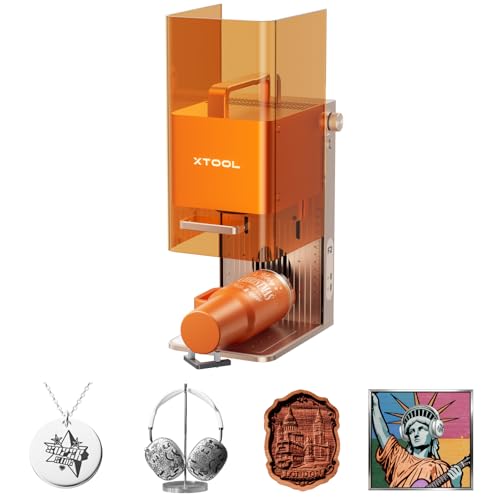
The three best-rated models of our best laser engravers ranking, from the Amazon review record and the listed specs.


Product images: Amazon listings